
How to Update Parent Items from Subitems in monday.com
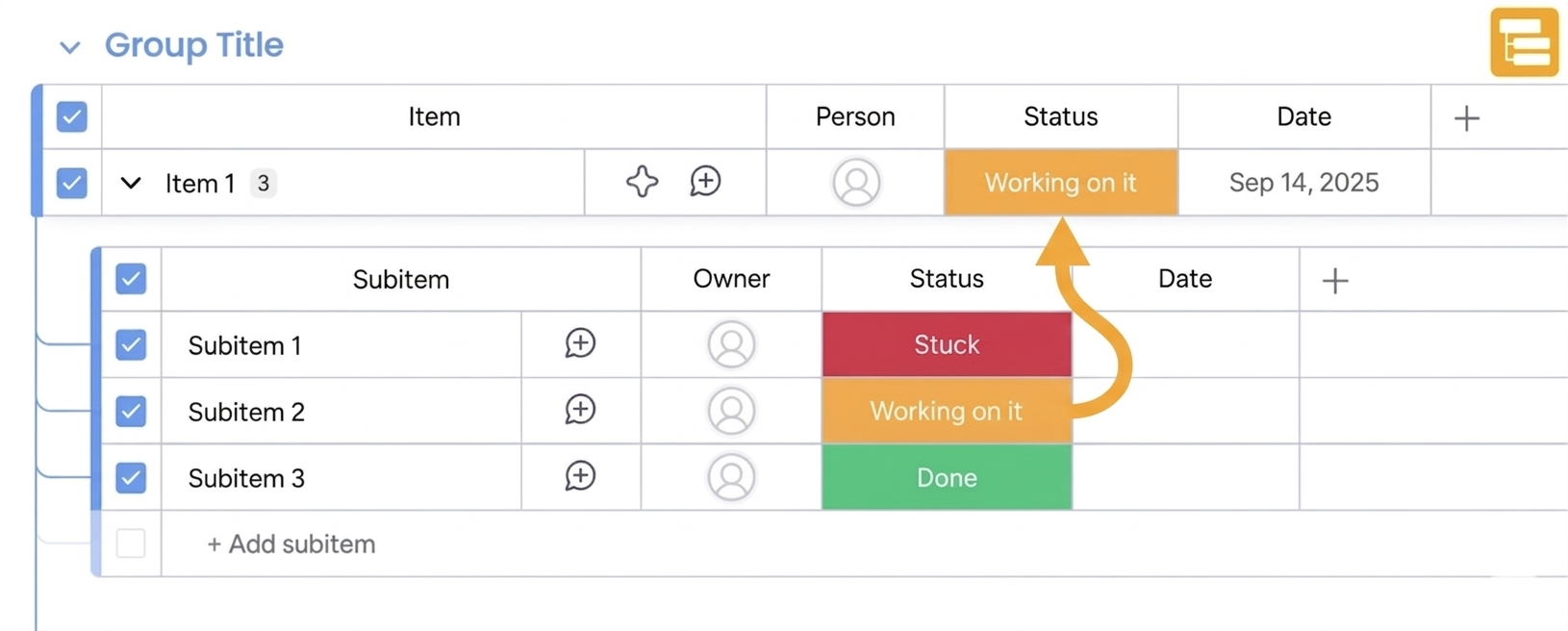
You have a project item with multiple subitems representing tasks. When a subtask is marked complete, you want the parent project status to update automatically. Or maybe you want the parent to show the due date from a specific subitem, or copy a calculated value from a subitem's formula column.
monday.com can't do this natively. There are no built-in automations for copying data between subitems and their parent items in either direction.
Subitems Pro Automations adds dedicated subitem-to-parent automations. When a subitem column changes, the app can copy that value to the parent item automatically.
Can you update a parent item when a subitem changes in monday.com?
Not with native automations. monday.com's built-in subitem automations focus on creating subitems and notifying people, but they don't include triggers for copying subitem data to parent items.
Subitems Pro Automations provides a "When subitem column changes, copy to parent column" trigger. Any change to the specified subitem column immediately updates the corresponding parent column.
What subitem-to-parent automations are available?
The app includes seven automation recipes for copying data from subitems to their parent items:
Basic copy - "When subitem column changes, copy subitem column to parent column." The simplest option. A subitem's status changes, and the parent's status updates to match.
Targeted copy - "When subitem column changes, copy subitem column to parent column in item." Target a specific item on the same board instead of the direct parent.
Conditional copy - "When subitem column changes and subitem status is something, copy subitem column to parent column." Only copies when the subitem has a particular status value. Copy the due date to the parent only when the subitem is marked "Active," for example.
Formula copy - "When subitem column changes, copy subitem column [formula] to parent column." The trigger watches a regular column, but you copy from a formula column. Useful when you want a regular column change to push a calculated value to the parent.
Formula with item targeting - "When subitem column changes, copy subitem column [formula] to column in item." Same as formula copy, but targets a specific item on the same board instead of the direct parent.
Mirror copy - "When subitem column changes, copy subitem column [mirror] to parent column." The trigger watches a regular column, but you copy from a mirror column. Useful when you want to push mirrored data to the parent.
Mirror with item targeting - "When subitem column changes, copy subitem column [mirror] to column in item." Mirror copying with specific item targeting on the same board.
When would you copy subitem data to a parent item?
The most common scenario is status rollup. You have a parent project with five subtasks. When the last subtask is marked complete, the parent should reflect that. The conditional copy automation handles this - copy the status to parent only when subitem status is "Done," and the parent shows the most recent completion.
Date tracking works the same way. Copy the most recent "Last Updated" date from any subitem to the parent. The parent always shows when the most recent subtask activity occurred.
Formula syncing lets you copy calculated values from subitems. If a subitem has a formula column computing cost or progress, the formula copy variant sends that result to the parent when a related column changes.
Teams with complex approval workflows use this to bubble up approval status. When a subitem moves to "Approved," copy that status to the parent to signal completion at the parent level.
What's the difference between basic copy and formula copy?
Both use a regular column change as the trigger - you can't select formula or mirror columns in the trigger field.
Basic copy copies from the same column type. The column that triggers the automation is also the column you copy from.
Formula copy lets you copy from a formula column when a regular column changes. If updating a subitem's status should push a calculated value to the parent, this is the variant to use.
What's the difference between copy and mirror automations?
Basic copy copies from a regular column. Mirror copy copies from a mirror column on the subitem.
In both cases, the trigger is a regular column change - you can't use formula or mirror columns as triggers. The difference is what you're copying from. If your subitem has a mirror column pulling data from another board, the mirror variant lets you push that value to the parent when a related column changes.
How to set up your first subitem-to-parent automation
- Install Subitems Pro Automations from the monday.com marketplace
- Open your board's automations center
- Search for Subitems Pro Automations recipes
- Choose "When subitem column changes, copy subitem column to parent column" (or any other automation from the list above that fits your use case)
- Select the subitem column to watch and the parent column to update
- Save and activate
Any change to that subitem column now triggers an update to the parent.
Common workflows
Project status rollup is the primary use case. A parent item represents a project or epic, subitems are the individual tasks. When the final task completes, the automation copies "Complete" to the parent status.
Due date syncing keeps parent items showing the most relevant deadline. Copy the earliest or latest due date from subitems to the parent, so the parent always reflects the actual timeline.
Progress tracking works when you have a percentage or number column on subitems. When a subitem's progress updates, the parent can reflect that change immediately.
Centralized tracking uses the item targeting variants. Subitems across different parent items can update a single summary item on the same board - useful when you want one item to reflect the latest activity from multiple projects.
Frequently asked questions
Why can't I use native automations to copy subitem data to parent items?
monday.com's native subitem automations don't include triggers for copying data between subitems and parent items. You can notify people and create subitems, but copying column values in either direction requires an app like Subitems Pro Automations.
Does this work with all column types?
The automation works with any column type that can store the same kind of data in both subitem and parent. Text, numbers, status, dates, dropdowns and more. Make sure the source and target columns are compatible types. However, they don't need to be the same type as the automation will transform the values if needed.
What happens when multiple subitems change at once?
Each subitem change triggers separately. If you update three subitems, the parent receives three updates. The last change wins for the final value on the parent.
Can I copy data from all subitems at once, like a sum or count?
These automations copy from the specific subitem that changed, not across all subitems. For aggregations like sums or counts, you'd need a different approach - the subitem summary column on parent items can handle some of this natively.
Does the automation work when subitems are created?
The trigger is "when subitem column changes." If a new subitem is created with a value already in the column, that counts as a change and triggers the automation.
Can I filter which subitems trigger the copy?
Yes. The conditional automation ("when subitem column changes and subitem status is something") only copies when the subitem matches a specific status. Use this to copy data only from completed tasks, active items, or any other status condition.
Getting started
Install Subitems Pro Automations from the monday.com marketplace. The documentation covers all available automations, and you can email us if you have questions about a specific workflow.