
Control Which Statuses Your Team Can Pick in monday.com
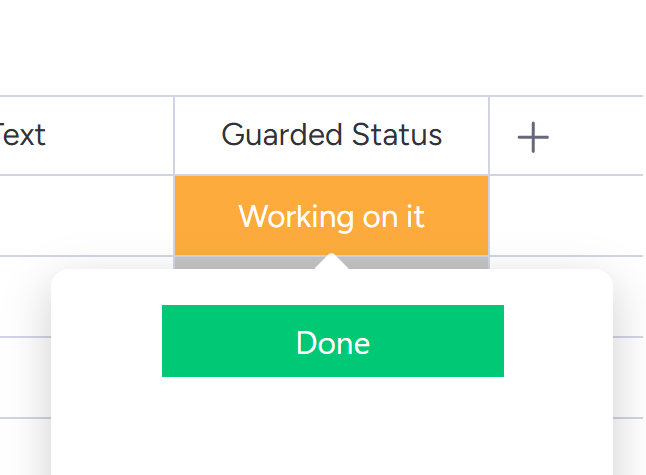
monday.com has a built-in way to restrict which statuses show up in a column. It's called the conditional status column, and it works - until it doesn't.
The idea is simple: pick a dependency column, and based on its value, only certain statuses are available. If "Priority" is "High", maybe you only show "Working on it" and "Stuck". For that exact scenario, it's fine. But most workflows aren't that simple, and that's where things start falling apart.
Column Changes Guard takes a different approach. Instead of filtering statuses based on one column, it lets you define transition rules - what can change, from what, to what, under what conditions, and by whom. And it can hide the statuses that aren't allowed, so your team only sees what they can actually pick.
What's Wrong with the Conditional Status Column
It's not that the conditional status column is bad. It's that it only solves one very narrow problem, and leaves everything else wide open.
It only looks at one column
You pick one dependency column, and that's it. In practice, whether a status change should be allowed often depends on several things at once - who's assigned, whether a description has been filled in, what the due date is, what the current status already is. The conditional status column can't combine any of these.
There's no transition logic
This is the big one. The conditional status column doesn't care what the current status is. It filters based on an external column's value, not based on where you're coming from. So you can't say "In Progress can only go to Done or Stuck." You can't enforce a sequence. Anyone can jump to any of the visible statuses, regardless of the current state.
No control over who makes the change
There's no way to tie status changes to a person. You can't say "only the assignee can move this to Done" or "only managers can mark something as Approved." The conditional status column doesn't know or care who's clicking.
No required fields
You can't block a status change until other columns are filled in. "Add a description before moving to In Progress" or "set a due date before marking as Done" - these are common requirements, and the conditional status column simply can't enforce them.
You can't use it on existing columns
This one catches people off guard. You can't take your existing status column and make it conditional. You have to create a brand new conditional status column. If your board already has automations, dashboards, and integrations pointing at the original status column, you're looking at rewiring everything.
Automations ignore it completely
Even with the conditional status column hiding certain options in the UI, any automation can still set any status value it wants. There's no server-side check. The restrictions only exist in the browser - they're cosmetic.
How Column Changes Guard Handles This
Column Changes Guard doesn't filter statuses based on another column's value. It defines rules about transitions themselves.
You set up rules like: from "To Do" you can go to "In Progress". From "In Progress" you can go to "Done" or "Stuck". From "Done" you can't go anywhere - it's final. Each rule can also have conditions: who's allowed to make the change (based on a People column), and what other fields need to be filled in first.
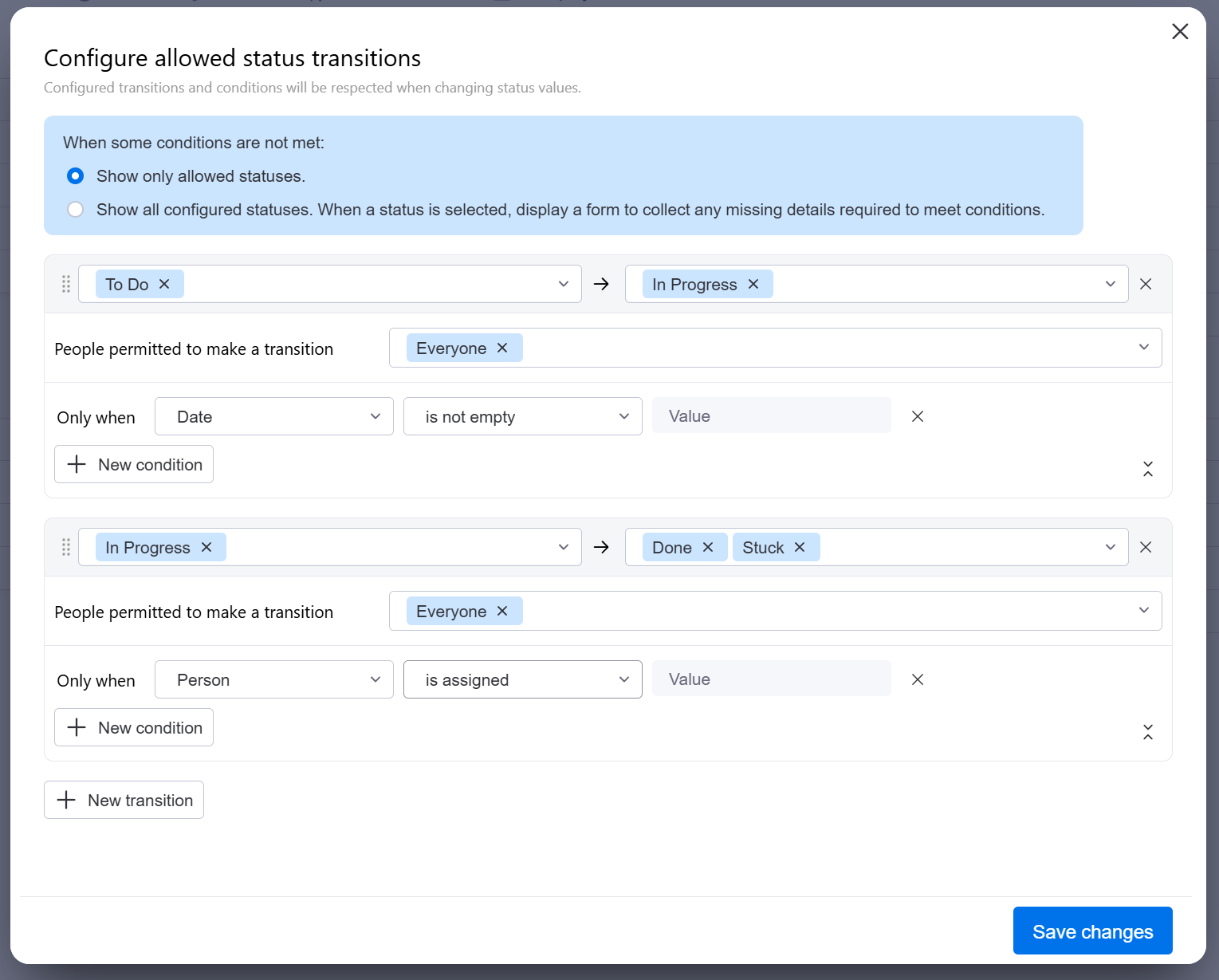
Hiding statuses vs. gating them
When you use Column Changes Guard as its own status column (added from the column center), you get two options for how disallowed statuses behave:
Hide them entirely. If a transition isn't allowed from the current state, that status just doesn't show up. Your team sees three options instead of twelve. No confusion, no clicking on something only to have it rejected.
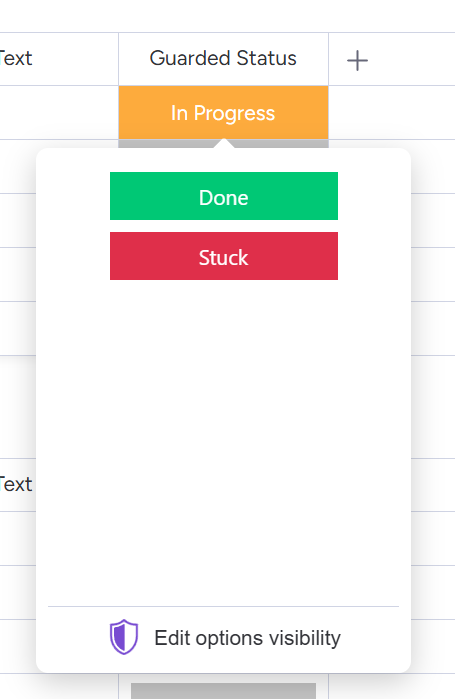
Show everything, but require a form. All statuses stay visible, but picking a restricted one opens a form where the user has to fill in whatever's missing - a description, a date, whatever the rule requires. This works well when you want people to understand the full workflow but still enforce data quality.
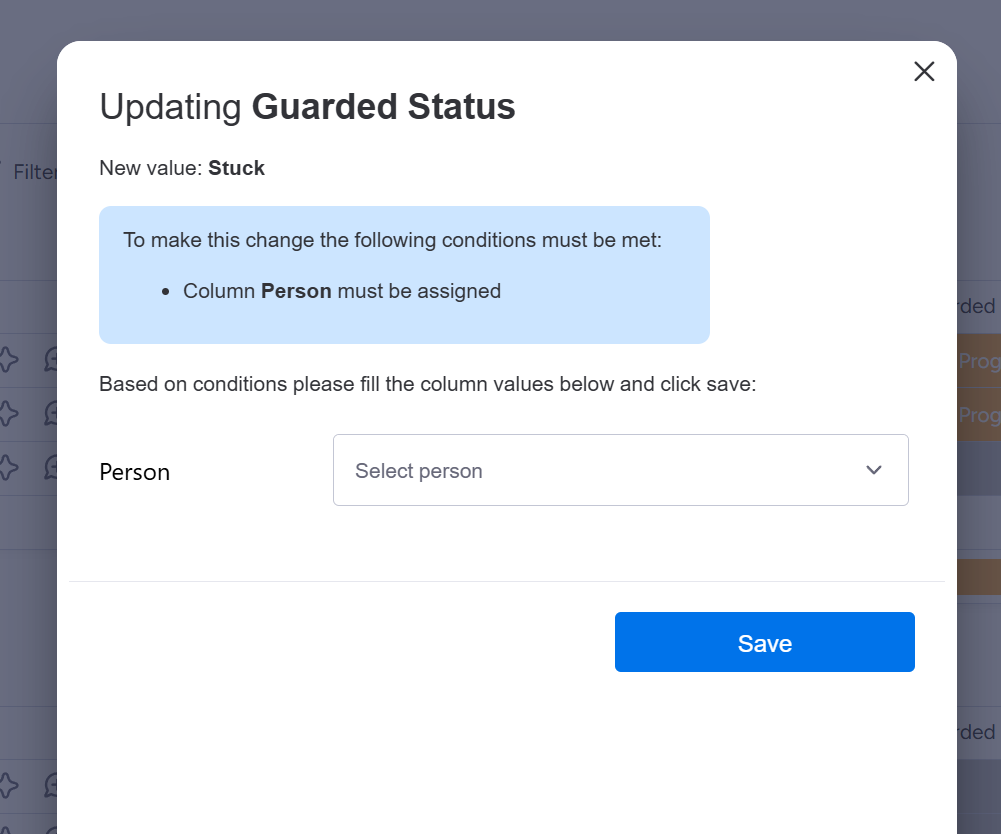
It works on columns you already have
You don't need to create a new column. Column Changes Guard can sit on top of your existing status column as a column extension. Open the three-dot menu on any status column, go to "Column extensions", and add it there. It monitors changes and reverts anything that breaks the rules. Your automations and dashboards keep working - they still point at the same column.
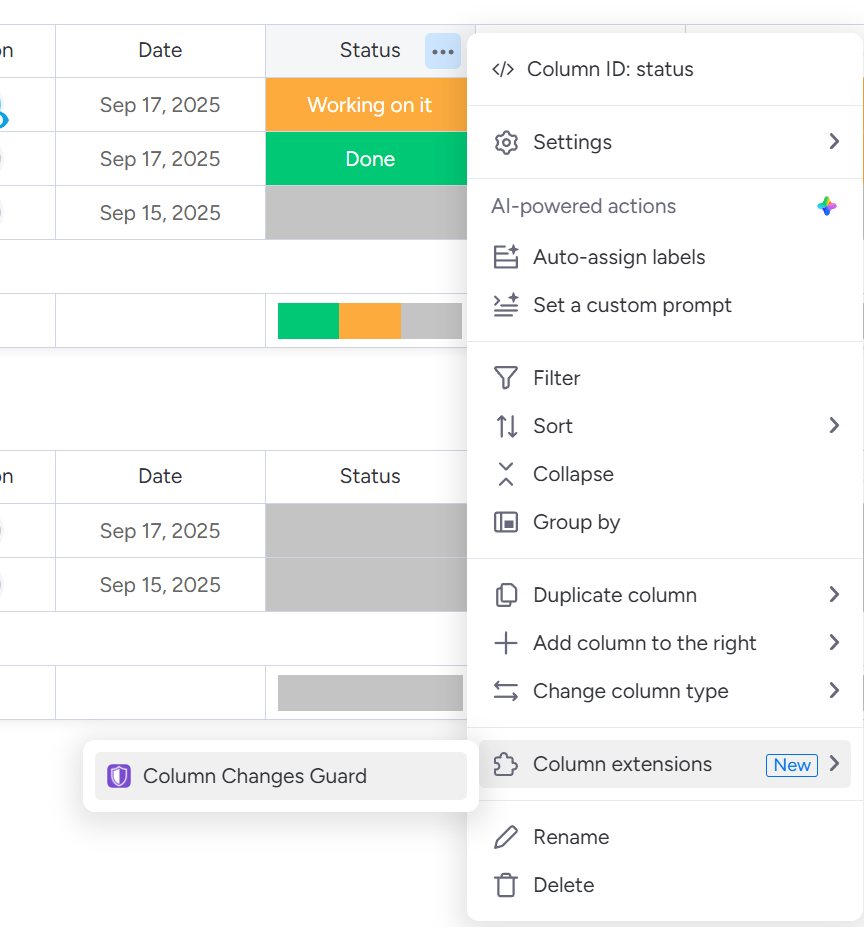
Automations get validated too
Column Changes Guard comes with automation recipes that validate changes before they happen. If an automation tries to set a status that breaks your rules, the validation catches it. This is a real gap in the conditional status column - UI restrictions don't mean much if half your status changes come from automations.
Comparing the Two
The conditional status column gives you one filter based on one column. Column Changes Guard gives you:
- Transition logic (from → to rules) that the conditional status column doesn't have at all
- Conditions based on multiple columns at once - status, people, text, dates, numbers, dropdowns, connected boards, even mirror columns
- People-based restrictions so you can control who makes specific transitions
- Required field enforcement before a transition is allowed
- The ability to add rules to an existing status column without replacing it
- Automation validation so your rules apply everywhere, not just in the UI
If all you need is "when column X equals Y, show these three statuses" - the conditional status column is built in and works. Use it.
But if you need actual workflow enforcement - sequences, permissions, required data, protection against automation bypasses - you need something more. That's what Column Changes Guard is for.
How to Set It Up
- Install Column Changes Guard from the monday.com marketplace
- Choose your approach - add it as a column extension to an existing status column, or create a new Column Changes Guard status column from the column center
- Define your transitions - specify which from → to changes are allowed
- Add conditions - set required fields, people restrictions, or other column dependencies
- Choose visibility mode - hide disallowed statuses entirely, or show them with a required form
- You're all set!
For the column extension approach, find the app under the three-dot menu → "Column extensions" on your existing status column. For the new column approach, add it from the column center.
Getting Started
Column Changes Guard is available in the monday.com marketplace. For detailed setup instructions, see the full documentation or reach out to us if you need help with your specific workflow.