
How to Trigger Automations from Formula Columns in monday.com
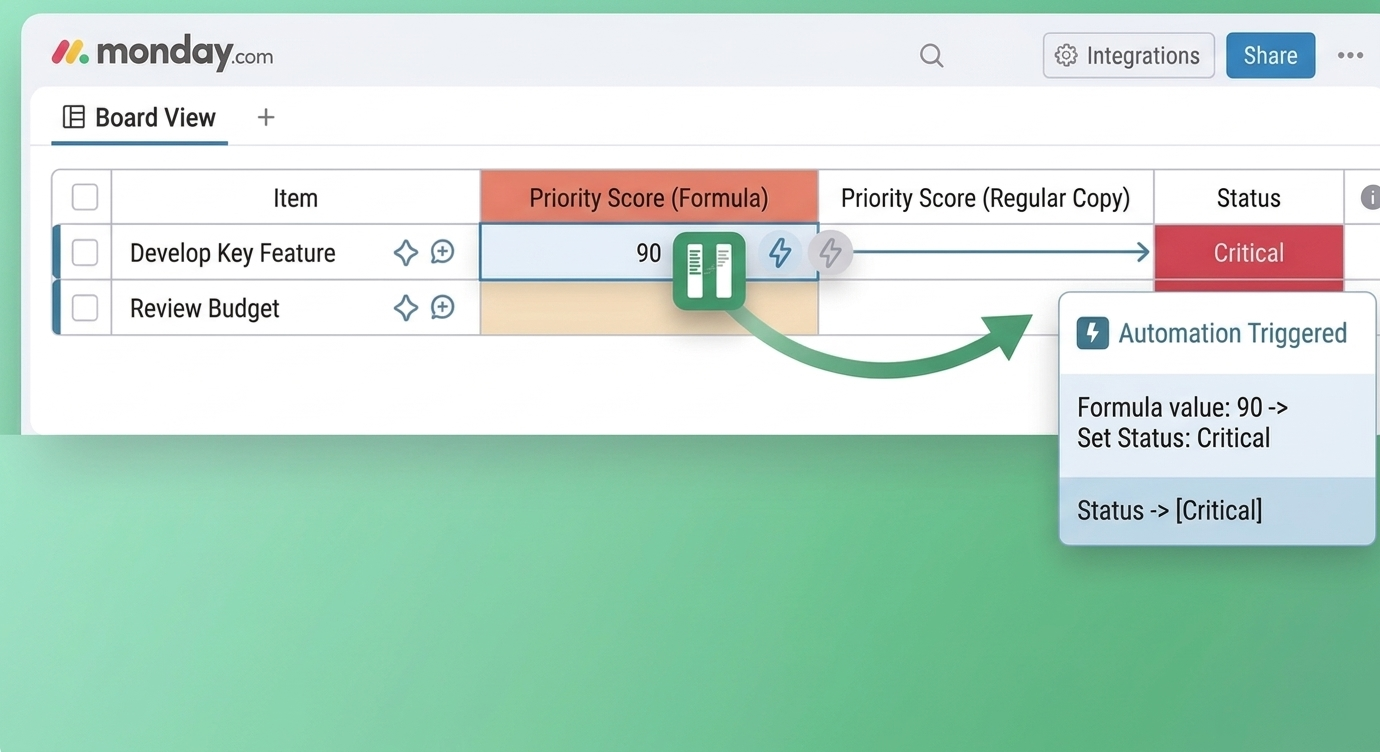
You've built a formula in monday.com that calculates exactly what you need - maybe it's a budget remaining, a priority score, or days until deadline. Now you want to automatically change a status when that formula hits a certain value. But monday.com won't let you.
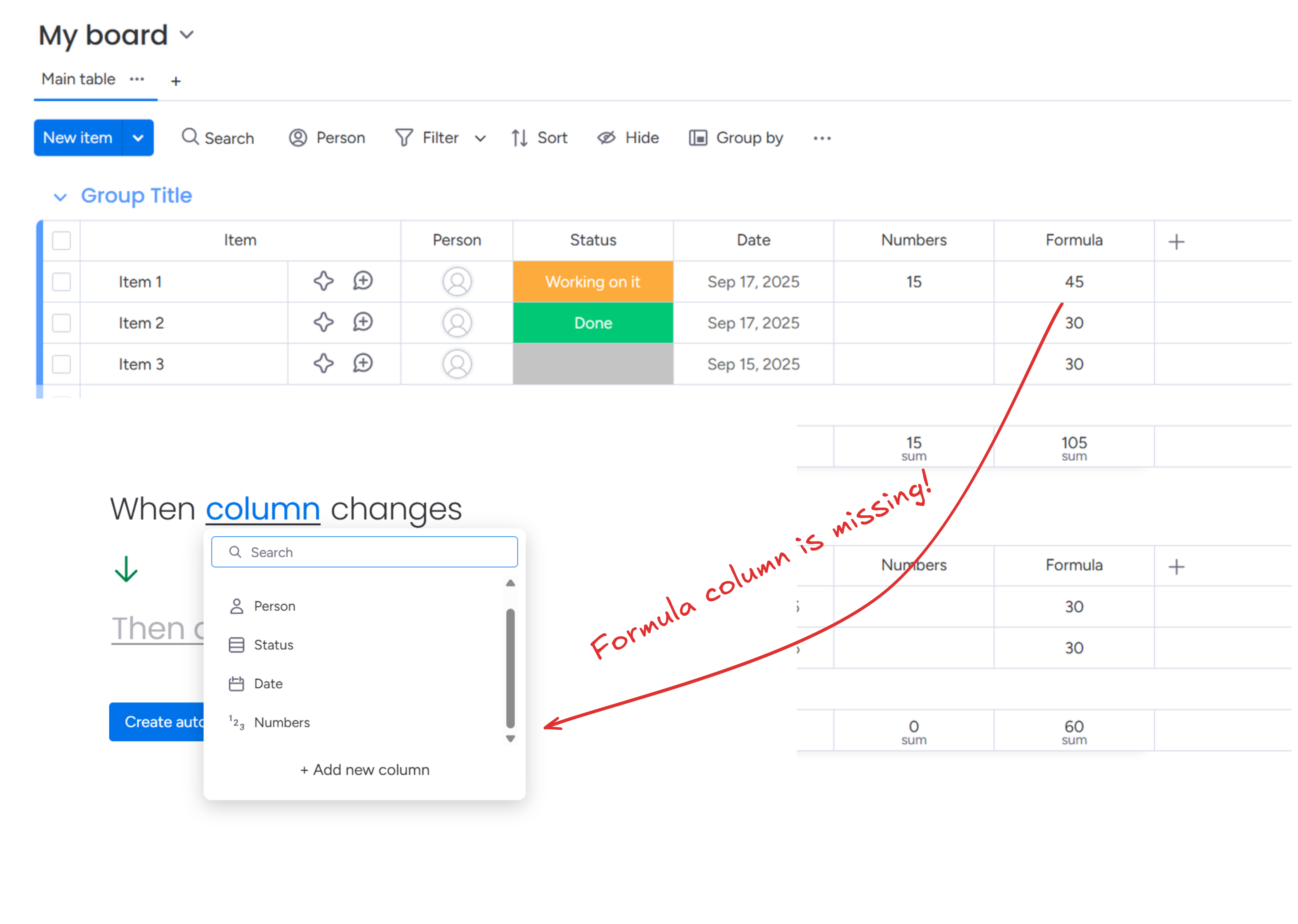
Native automations can't trigger on formula columns. You can't say "when formula equals X, change status to Y." It's a common frustration.
Column to Column fixes this with a "When formula recalculates" trigger that copies the formula result to a regular column - which you can then use in standard automations.
Example: Auto-Update Status Based on Budget Remaining
Let's say you have a formula calculating {Budget} - {Spent} and you want the status to show "Over Budget" when it goes negative.
Here's how to set it up:
- Install Column to Column from the monday.com marketplace
- Create a Number column called "Budget Remaining (Copy)"
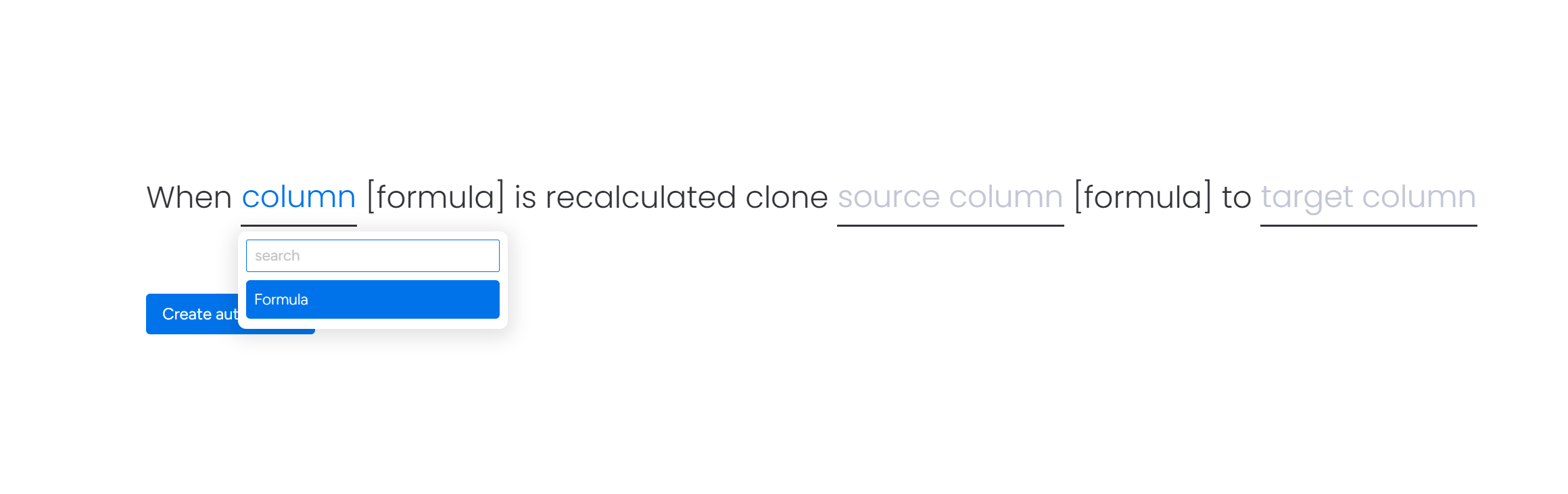
- Add the automation: "When formula recalculates, copy Formula to Budget Remaining (Copy)"
- Add a native automation: "When Budget Remaining (Copy) is less than 0, change Status to Over Budget"
The formula result now flows into a regular column, and standard automations take over from there.
More Real-World Examples
Priority scoring: Formula calculates urgency based on due date and importance. Copy to a number column, then use "when column changes" to update a Priority status.
Capacity planning: Formula shows {Assigned Hours} / {Available Hours}. When it exceeds 1, automatically flag the person as overloaded.
Project health: Combine multiple metrics into a score. Copy the result, then trigger status changes at different thresholds.
SLA tracking: Calculate time remaining on a ticket. Update status to "At Risk" when formula drops below your threshold.
How the Formula Trigger Actually Works
When you set up this automation, the app creates webhooks for every column referenced in your formula. If your formula is {Numbers} * {Quantity}, it watches both columns for changes.
Important: the automation triggers on recalculation, not just on result change. If inputs change but the result stays the same, it still fires. This is usually fine, but worth knowing.
Limitations You Should Know
This trigger won't fire in several situations:
- Group or board name changes - If your formula references
{Group}or board names, changes there won't trigger recalculation - Item name changes - The Name field behaves differently than regular columns
- Person attribute changes - If someone updates their profile (name, email, phone), formulas referencing People columns won't recalculate
- TODAY() function - Formulas using
TODAY()don't trigger this automation when the date changes at midnight
Also important: if you modify your formula's syntax (like adding a new column reference), you'll need to recreate the automation. The webhooks are set up based on the original formula structure.
A Note on Performance
This trigger creates webhooks for each referenced column, and every change to those columns generates webhook events. If you're referencing columns that change frequently across many items, you could generate substantial webhook traffic.
This isn't usually a problem, but it's worth considering if you're setting this up on a high-activity board with complex formulas referencing many columns.
Mirror Column Formulas
Formulas that reference mirror columns are supported, but if you run into errors with these, you have two options:
- Use Column to Column's mirror column automation to copy the mirror to a standard column first, then reference that in your formula
- Reach out to our support team - we can often help with specific edge cases
Getting Started
The "When formula recalculates" trigger is available in Column to Column's automation recipes. You'll find it in your monday.com automations center after installing the app.
Need help setting it up? Check our full documentation or contact us directly.
Related
- Formula automations step-by-step guide - quick setup walkthrough with screenshots
- Trigger automations from mirror columns - same approach for mirror columns instead of formulas